

Still wasting time searching through piles of paperwork or waiting for slow, unreliable scans? The best scanner for documents can turn clutter into organized, searchable digital files in just seconds.
Whether you’re digitizing tax records, business contracts, family paperwork, or looking for a scanner for photos and documents to preserve treasured memories, the right scanner makes every task faster and easier.
To help you choose with confidence, we’ve compared the top models based on scanning speed, image quality, OCR accuracy, ease of use, and overall value
How Does a Document Scanner Work?
A document scanner may look simple, but it performs several tasks in just a few seconds. Instead of taking a basic photo, it captures every detail, enhances the image, and turns your paper into a high-quality digital file.
Here’s how the entire process works.
The Scanner Feeds the Document
The process starts when you place your document on the flatbed glass or load a stack of papers into the Automatic Document Feeder (ADF).
Flatbed scanners work best for books, passports, IDs, and fragile photos. Sheet-fed scanners are designed for speed and can scan dozens of pages automatically.
A Bright Light Scans Every Detail
Once the scan begins, a bright LED light moves across the document. As the page passes through the scanner, image sensors capture every detail with impressive accuracy.
This includes text, graphics, signatures, stamps, and even small print. The scanner then converts the captured information into a digital image.
The Scanner Improves the Image
Modern document scanners do much more than create a copy. They automatically enhance the scanned image to improve readability.
Many models can straighten crooked pages, remove blank pages, reduce background noise, sharpen blurry text, and adjust brightness or contrast. The result is a cleaner, more professional-looking document without any manual editing.
OCR Converts Images Into Editable Text
One of the most useful features is Optical Character Recognition (OCR). This technology analyzes printed text and converts it into editable and searchable content.
Instead of viewing a scanned page as just an image, you can search for keywords, copy text, or edit the document in supported software. This feature is especially valuable for contracts, invoices, reports, and business records.
The Scanner Saves Your File
After processing, the scanner saves your document in the format you choose. PDF is the most popular option because it preserves formatting and is easy to share.
Many scanners also support JPEG, PNG, and TIFF for images. Advanced models can automatically upload files to cloud storage, email, or network folders, making document management even easier.
Quick Comparison Table of the Best Document Scanners
7 Best Scanner for Documents
Not every document scanner is worth your money. Some are built for speed. Others focus on image quality, portability, or high-volume workloads. The right choice depends on how and where you’ll use it.
To make your decision easier, we’ve researched and compared the top models based on scan quality, performance, features, ease of use, and overall value.
Below are the 7 best scanners for documents that stand out for home users, professionals, and businesses alike.
1/ HP ScanJet Pro 2000 s2
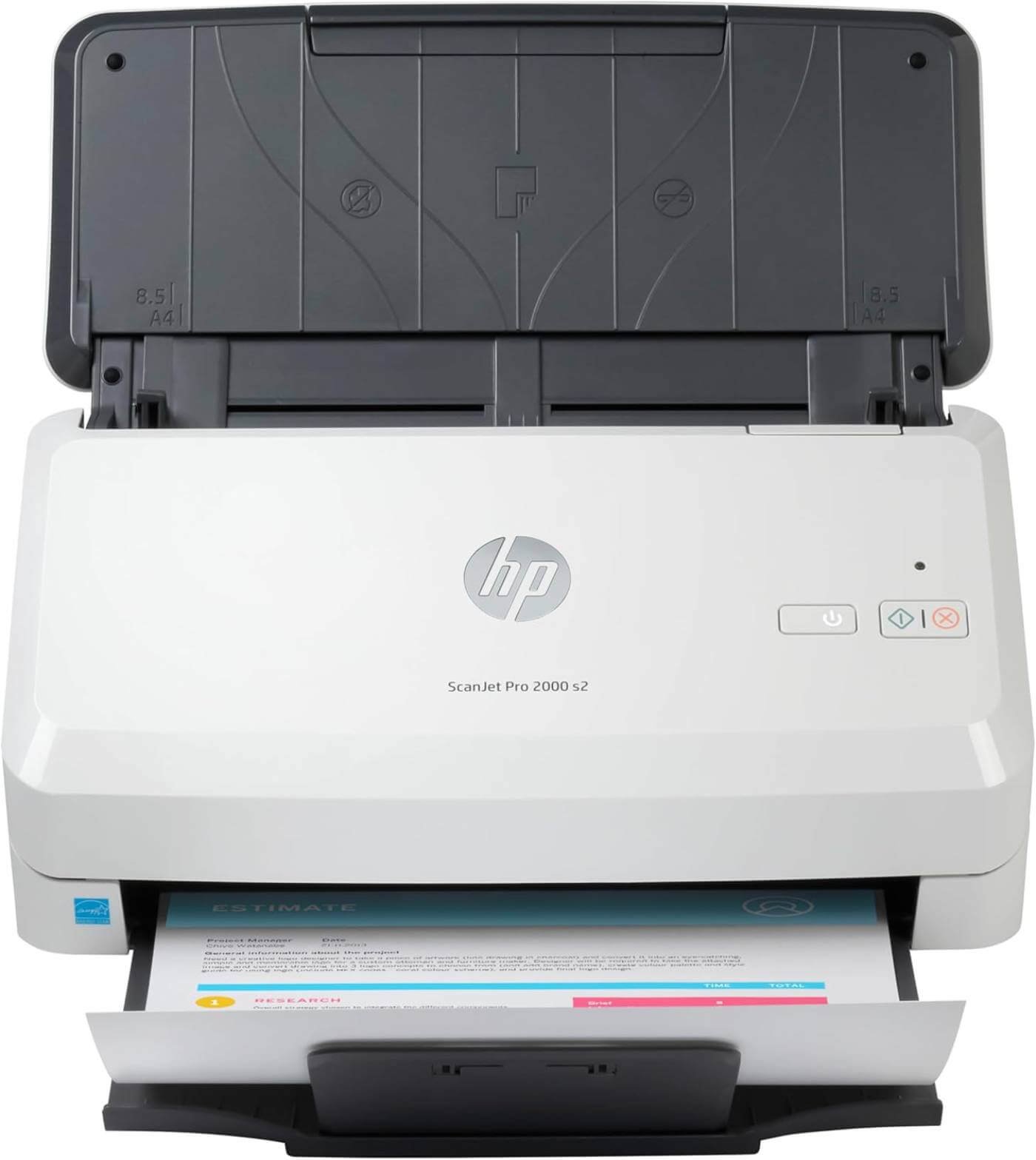
The HP ScanJet Pro 2000 s2 is built for users who need speed, accuracy, and reliability. Whether you’re scanning invoices, contracts, or business records, this scanner handles large workloads with ease. It offers fast duplex scanning, excellent OCR performance, and a compact design that’s perfect for home offices and small businesses.
Key Features
- Fast Scanning Speed – Scans up to 35 pages per minute (70 images per minute), helping you finish large jobs in less time.
- Single-Pass Duplex Scanning – Captures both sides of a page in one pass. No need to flip documents manually.
- 50-Sheet Automatic Document Feeder – Load up to 50 pages at once and let the scanner do the work while you focus on other tasks.
- 600 dpi Optical Resolution – Produces crisp text and clear images, making every scan easy to read and archive.
- Built-in OCR Technology – Converts printed documents into searchable and editable files, saving hours of manual typing.
- Scan to Cloud Support – Send scanned files directly to cloud storage for quick access and secure backup.
- Powerful Scanning Software – Includes HP Scan software and third-party tools for editing, organizing, and managing documents with ease.
- Compact and Space-Saving Design – Fits comfortably on most desks without sacrificing performance.
- Built for Daily Workloads – Handles up to 3,500 pages per day, making it ideal for busy offices with frequent scanning needs.
Pros
- Fast and accurate scanning
- Excellent OCR performance
- Reliable single-pass duplex scanning
- Large 50-sheet ADF
- Compact footprint
- Easy-to-use software
Cons
- USB connection only
- Not suitable for books or bound materials
- Limited photo scanning capabilities
Click Here to Check Today’s Price on Amazon
2/ Epson FastFoto FF-680W
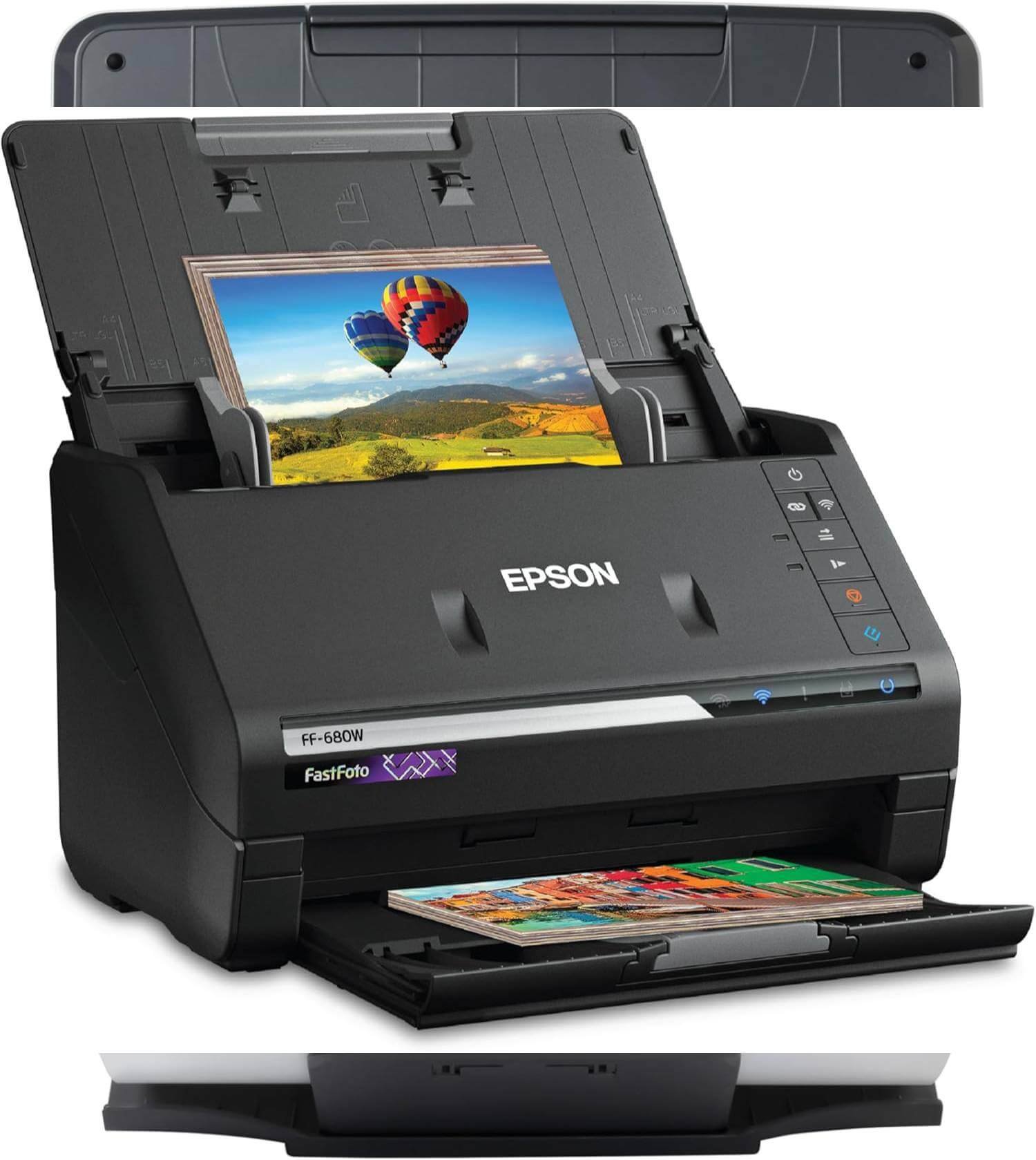
The Epson FastFoto FF-680W is the perfect choice if you want to digitize both old photos and important documents. Unlike traditional document scanners, it focuses on preserving memories while still delivering excellent document scanning performance. With wireless connectivity and advanced image restoration features, it’s an ideal option for families, photographers, and home users.
Key Features
- Ultra-Fast Photo Scanning – Scans photos at speeds of up to one photo per second, making large photo collections easy to digitize.
- Scans Photos and Documents – Handles everything from family photos and postcards to receipts and office paperwork with ease.
- Wireless Connectivity – Built-in Wi-Fi lets you scan directly to your computer without dealing with cables.
- Automatic Photo Enhancement – Restores faded colors, reduces red-eye, straightens images, and improves overall photo quality automatically.
- Batch Scanning Support – Scan up to 36 photos in one batch, saving significant time when digitizing large albums.
- Captures Front and Back in One Scan – Records both the photo and handwritten notes on the back simultaneously, preserving every memory.
- 600 dpi Optical Resolution – Produces sharp, detailed scans that are perfect for archiving, printing, or sharing.
- Epson FastFoto App – Add voice recordings, captions, and create digital slideshows directly from your smartphone.
- Supports Multiple Photo Sizes – Scans Polaroids, panoramas, postcards, and photos up to 8 × 10 inches.
Pros
- Extremely fast photo scanning
- Excellent photo restoration features
- Scans both photos and documents
- Wireless connectivity for added convenience
- Captures both sides of photos in one pass
- Easy-to-use software and mobile app
Cons
- Smaller 36-sheet photo feeder
- More expensive than standard document scanners
- Best suited for photos rather than high-volume office scanning
Click Here to Check Today’s Price on Amazon
3/ Epson Workforce DS-410
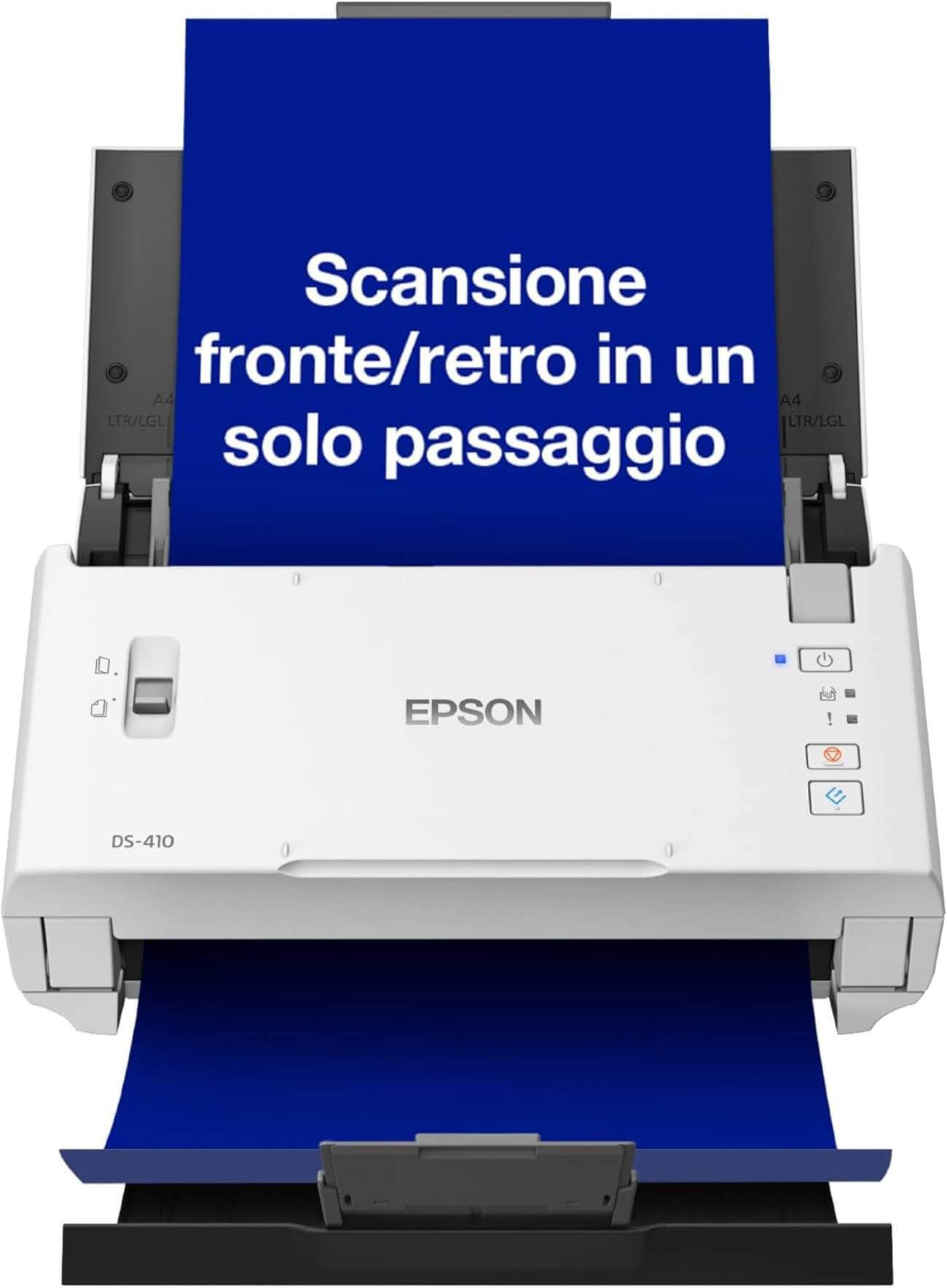
The Epson Workforce DS-410 is a dependable document scanner designed for busy professionals and small businesses. It combines fast scanning speeds, reliable paper handling, and sharp image quality in a compact package. If you regularly scan contracts, invoices, or reports, this scanner offers an excellent balance of performance and affordability.
Key Features
- Fast Document Scanning – Quickly digitizes large batches of paperwork, helping you stay productive throughout the day.
- Single-Pass Duplex Scanning – Scans both sides of a document at the same time, cutting scanning time in half.
- 50-Sheet Automatic Document Feeder – Load up to 50 pages and let the scanner process them automatically.
- 600 dpi Optical Resolution – Produces crisp text and clear images for professional-quality scans.
- Reliable Paper Handling – Handles different paper sizes and document types smoothly, reducing paper jams during large scanning jobs.
- Built-in OCR Support – Converts scanned documents into searchable and editable files for easier organization.
- Compact Desktop Design – Fits comfortably on small desks without taking up valuable workspace.
- USB Connectivity – Offers a stable and reliable connection for consistent scanning performance.
- Designed for Everyday Use – Built to handle frequent document scanning for home offices and growing businesses.
Pros
- Fast and efficient document scanning
- Reliable duplex scanning
- Large 50-sheet ADF
- Sharp scan quality
- Compact and lightweight design
- Easy to set up and use
Cons
- No built-in Wi-Fi connectivity
- Not designed for scanning photo collections
- Limited mobile scanning features compared to wireless models
Click Here to Check Today’s Price on Amazon
4/ Canon CanoScan LiDE 400
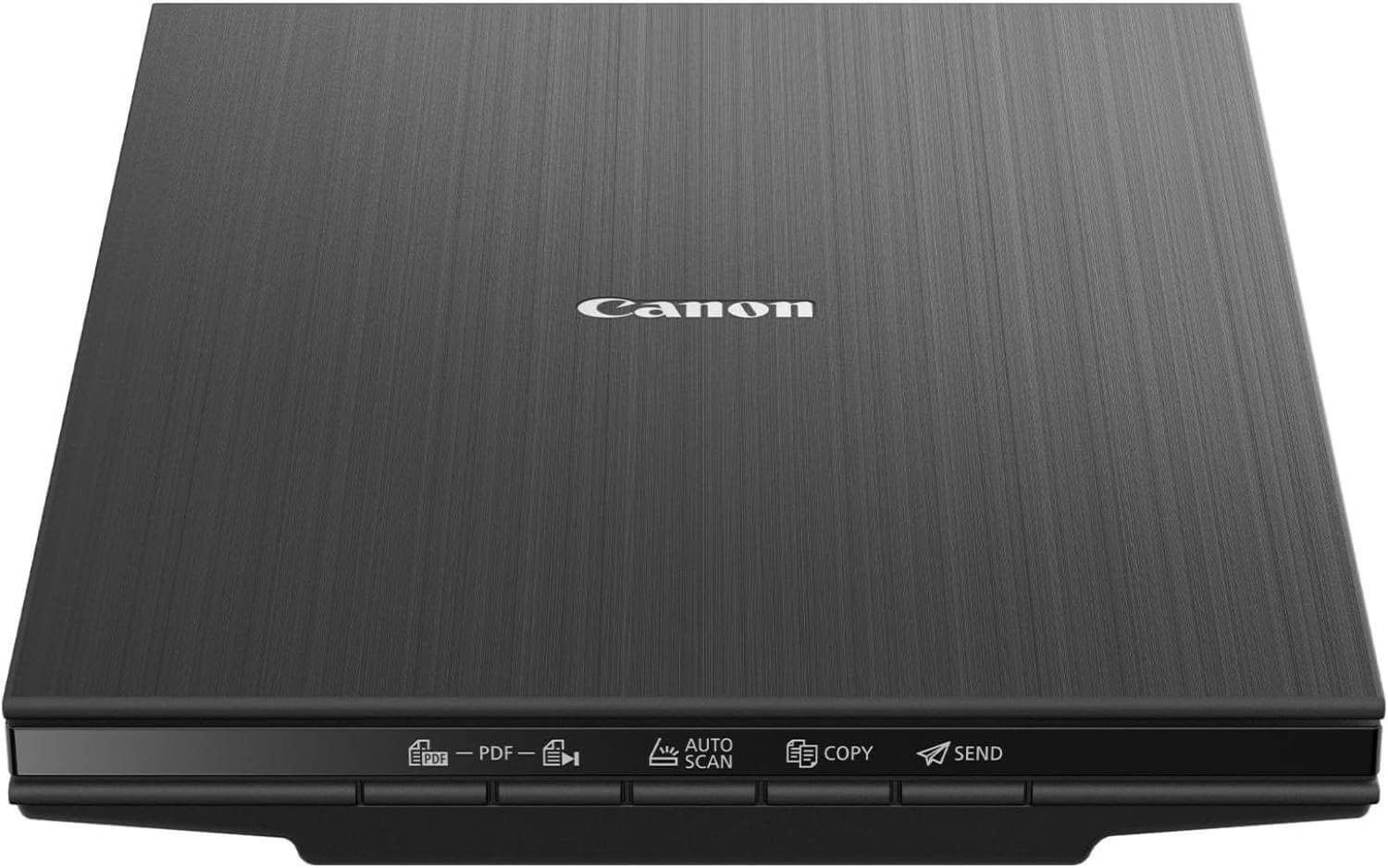
The Canon CanoScan LiDE 400 is an excellent flatbed scanner for users who value image quality over speed. It’s perfect for scanning photos, certificates, artwork, books, and delicate documents that can’t go through a sheet-fed scanner. With its ultra-high resolution and compact design, it’s a great choice for both home and creative users.
Key Features
- 4800 dpi High Resolution – Delivers incredibly sharp scans with rich colors and fine details, making it ideal for photos and important documents.
- Fast Scanning Performance – Scans an A4 document in as little as 8 seconds, saving time on everyday tasks.
- One-Touch EZ Buttons – Scan, copy, email, or create PDFs instantly with dedicated buttons for faster workflows.
- Auto Document & Photo Fix – Automatically improves image quality by correcting faded colors, enhancing text, and reducing imperfections.
- Multi-Page PDF Support – Easily combine multiple pages into a single PDF without complicated software.
- Compact Space-Saving Design – Slim profile and included vertical stand help maximize desk space.
- USB-Powered Operation – Uses a single USB connection for both power and data, reducing cable clutter.
- Ideal for Delicate Originals – Safely scans books, passports, IDs, magazines, artwork, and fragile photographs without damaging them.
Pros
- Outstanding 4800 dpi scan quality
- Excellent for photos and delicate documents
- Compact and lightweight design
- Easy one-touch operation
- USB-powered with no separate power adapter
- Fast scans for a flatbed scanner
Cons
- No Automatic Document Feeder (ADF)
- Single-page scanning only
- Not suitable for high-volume office workloads
Click Here to Check Today’s Price on Amazon
5/ EPSON WorkForce Pro WF-4830
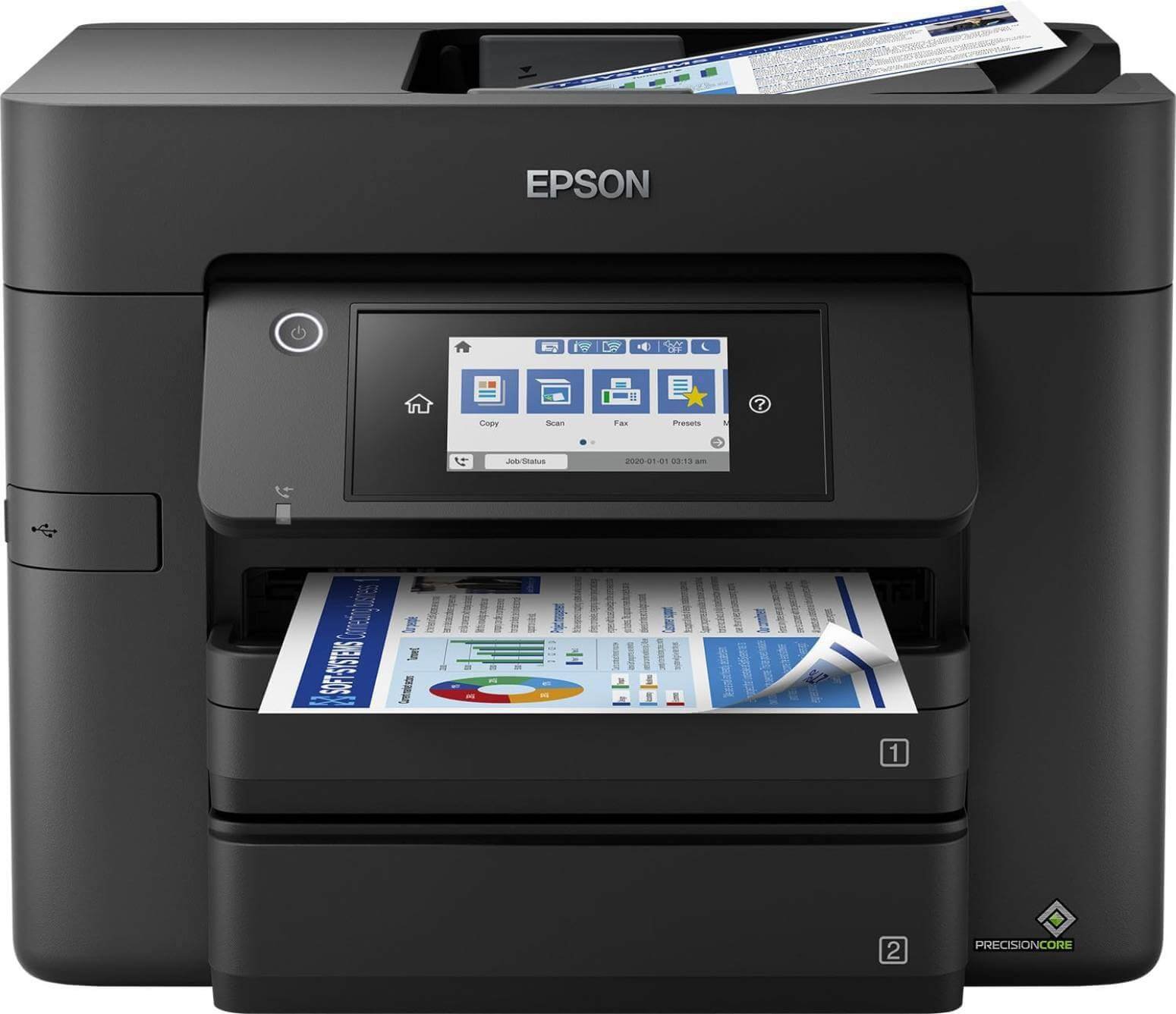
The EPSON WorkForce Pro WF-4830 is more than just a document scanner. It’s a complete 4-in-1 solution that prints, scans, copies, and faxes from a single compact device. If you need one machine to handle everyday office tasks, this all-in-one printer offers excellent value with fast printing, duplex scanning, and versatile connectivity.
Key Features
- 4-in-1 Functionality – Print, scan, copy, and fax from one compact machine, making it ideal for home offices and small businesses.
- Automatic Duplex Scanning & Printing – Saves time and paper by scanning and printing on both sides automatically.
- 50-Sheet Automatic Document Feeder – Load multiple pages at once for faster scanning, copying, and faxing.
- High-Quality Color Printing – Produces sharp documents and vibrant color prints with Epson’s PrecisionCore technology.
- Fast Print Speeds – Prints up to 25 ppm in black and 12 ppm in color, helping you complete jobs quickly.
- Large 4.3-Inch Touchscreen – Makes navigation simple with an intuitive interface for quick access to common tasks.
- Multiple Connectivity Options – Supports Wi-Fi, Wi-Fi Direct, Ethernet, and mobile printing for flexible access from almost any device.
- Scan to Cloud Support – Send scanned documents directly to cloud services for easy storage and sharing.
- Cost-Effective Ink System – Individual ink cartridges let you replace only the color you need, reducing long-term printing costs.
Pros
- Complete 4-in-1 office solution
- Automatic duplex printing and scanning
- Large 50-sheet ADF
- Excellent wireless and Ethernet connectivity
- Sharp print and scan quality
- Easy-to-use touchscreen
Cons
- Larger footprint than dedicated document scanners
- Scanning speed is slower than professional sheet-fed scanners
- Higher upfront cost if you only need scanning
Click Here to Check Today’s Price on Amazon
6/ Plustek PS186
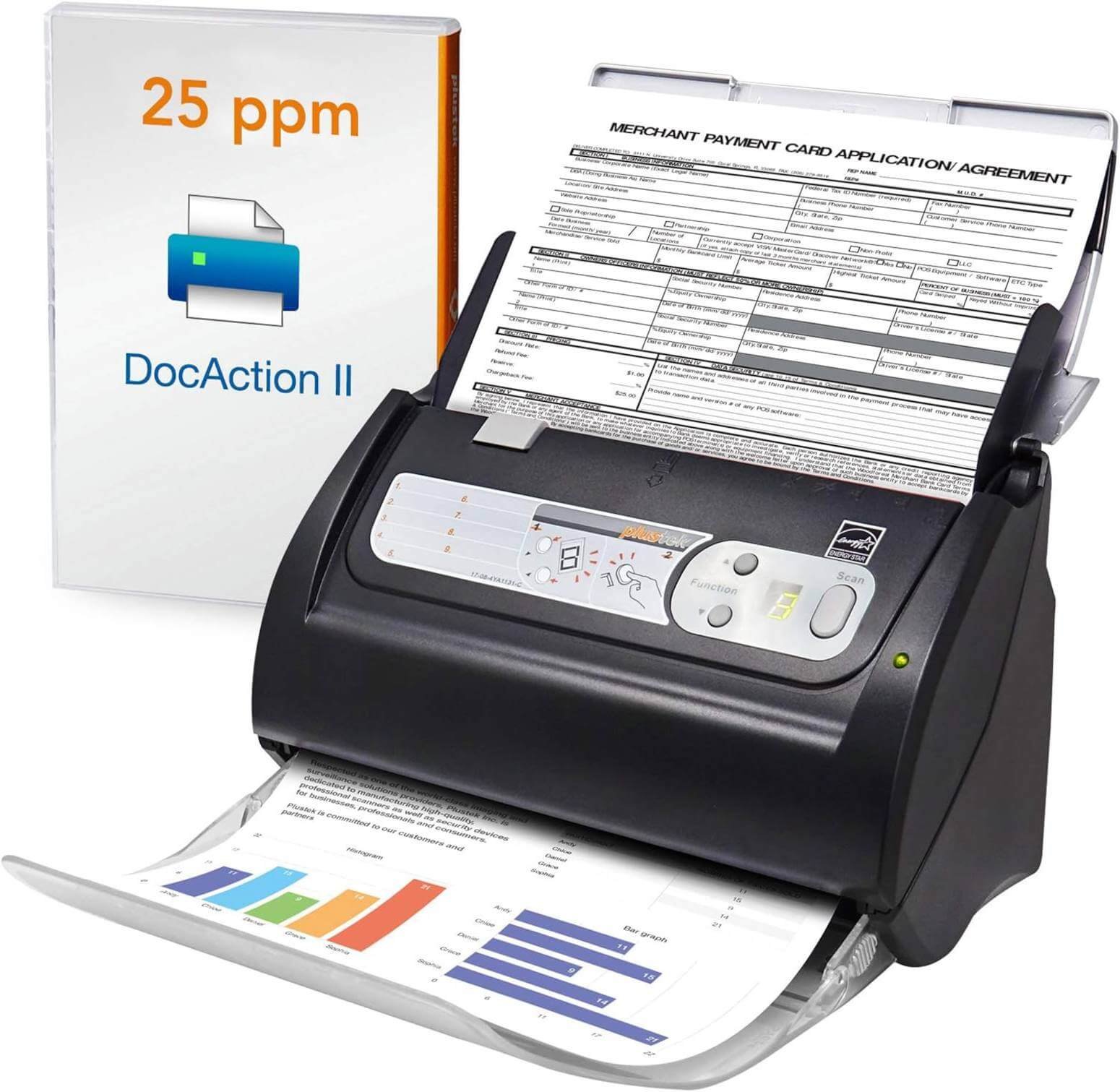
The Plustek PS186 is a compact document scanner built for speed, convenience, and smart document management. It’s an excellent choice for small offices and businesses that scan paperwork every day. With OCR, barcode recognition, and customizable scan profiles, it helps automate repetitive tasks and improve workflow.
Key Features
- 50-Sheet Automatic Document Feeder – Scan large batches of documents without constantly reloading paper.
- 600 dpi Optical Resolution – Produces sharp scans with clear text and accurate image quality.
- Built-in OCR Technology – Converts paper documents into searchable and editable files, making them easier to organize.
- 255 One-Touch Scan Profiles – Create and save custom scanning settings for different workflows with a single button press.
- Barcode Recognition – Automatically identifies 1D and 2D barcodes to help organize and categorize scanned documents.
- Automatic Image Enhancement – Corrects skewed pages, crops unwanted borders, rotates pages, and removes blank sheets automatically.
- Multiple File Formats – Save scans as PDF, Searchable PDF, JPEG, TIFF, or PNG to match your workflow.
- FTP and NAS Support – Send scanned files directly to an FTP server or network storage for faster document sharing.
- Compact Desktop Design – Lightweight and space-saving, making it ideal for desks with limited space.
Pros
- Easy one-touch scanning with customizable profiles
- Accurate OCR for searchable documents
- Useful barcode recognition feature
- Automatic image corrections
- Large 50-sheet ADF
- Compact and lightweight design
Cons
- USB connectivity only
- Windows support only
- No wireless or mobile scanning features
Click Here to Check Today’s Price on Amazon
7/ Fujitsu fi-8170
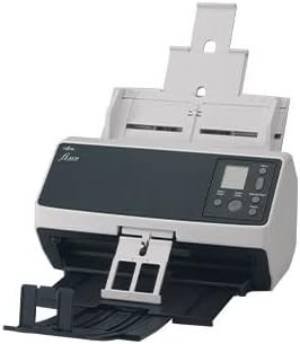
The Fujitsu fi-8170 is a professional-grade document scanner built for demanding environments. Designed for businesses that scan thousands of pages every day, it delivers exceptional speed, reliable paper handling, and enterprise-level performance. If efficiency and productivity are your priorities, this scanner is one of the best investments you can make.
Key Features
- Ultra-Fast Scanning – Scans up to 70 pages per minute with single-pass duplex scanning for maximum productivity.
- 600 dpi Scan Quality – Captures crisp text and detailed images, making every scan clear and easy to read.
- High Daily Duty Cycle – Built to handle up to 10,000 pages per day, making it ideal for heavy-duty office use.
- Robust Automatic Document Feeder – Designed to process large batches of documents smoothly with minimal interruptions.
- USB 3.2 and Ethernet Connectivity – Connect directly to a PC or share the scanner across a network for greater flexibility.
- Advanced Paper Handling – Reliably scans mixed document sizes while reducing paper jams and misfeeds.
- TWAIN Driver Support – Integrates easily with document management systems and business applications.
- Built for Professional Workflows – Ideal for digitizing invoices, legal documents, medical records, financial paperwork, and large archives.
- Reliable Fujitsu Engineering – Backed by Fujitsu’s proven scanning technology, now under the Ricoh brand, for long-term durability.
Pros
- Outstanding 70 ppm scanning speed
- Built for high-volume workloads
- Reliable paper handling
- USB and Ethernet connectivity
- Excellent image quality
- Ideal for enterprise environments
Cons
- Premium price
- Larger than entry-level scanners
- More features than most home users need
Click Here to Check Today’s Price on Amazon
Best Scanner by Use Case
The best document scanner isn’t the same for everyone. A home user has different needs than a busy office or a professional photographer. Some scanners focus on speed, while others deliver exceptional image quality or advanced features. Here’s which scanner stands out for each use case.
Best Scanner for Home Office
The HP ScanJet Pro 2000 s2 is the best choice for most home offices. It offers fast duplex scanning, a 50-sheet ADF, and accurate OCR for everyday paperwork. Its compact design also fits easily on a desk without taking up much space.
Best Scanner for Photos and Documents
The Epson FastFoto FF-680W is the clear winner for preserving memories and handling paperwork. It scans old photos in seconds, restores faded colors automatically, and also performs well with everyday documents. It’s perfect if you need one scanner for both jobs.
Best Heavy-Duty Document Scanner
The Fujitsu fi-8170 is built for demanding workloads. It scans up to 70 pages per minute and is designed for daily volumes of up to 10,000 pages. Businesses that process large amounts of paperwork will appreciate its speed and reliability.
Best High-Speed Document Scanner
If speed is your top priority, the Fujitsu fi-8170 stands out again. Its high-speed duplex scanning dramatically reduces waiting time and keeps large projects moving without interruption.
Best Budget Document Scanner
The Epson Workforce DS-410 offers excellent value without sacrificing performance. It provides reliable duplex scanning, a 50-sheet ADF, and sharp scan quality at a more affordable price than many business-class scanners.
Best Scanner for Photos
The Canon CanoScan LiDE 400 is the best option for high-resolution photo scanning. Its 4800 dpi resolution captures fine details, vibrant colors, and sharp images, making it ideal for photos, artwork, certificates, and delicate originals.
Best All-in-One Scanner and Printer
The EPSON WorkForce Pro WF-4830 is a great pick if you want more than a scanner. It combines printing, scanning, copying, and faxing into one device, making it an excellent solution for home offices and small businesses that need multiple functions in one machine.
Common Mistakes to Avoid When Buying a Document Scanner
Buying a document scanner isn’t just about picking the cheapest or fastest model. Choosing the wrong one can lead to slow workflows, poor scan quality, and wasted money. Avoid these common mistakes before making your decision.
- Buying based only on price – A cheaper scanner may lack essential features like duplex scanning, OCR, or an Automatic Document Feeder (ADF).
- Ignoring your daily scanning needs – Think about how many pages you’ll scan each day. A home user and a busy office need very different scanners.
- Overlooking scanning speed – If you scan documents regularly, a slow scanner can quickly become frustrating. Check the pages-per-minute (PPM) rating before buying.
- Skipping OCR support – Without Optical Character Recognition (OCR), your scanned documents won’t be searchable or editable, making file management more difficult.
- Choosing the wrong scanner type – Flatbed scanners are great for photos and books, while sheet-fed models are much better for everyday paperwork.
- Ignoring duplex scanning – A scanner that captures both sides of a page in one pass saves time and improves productivity.
- Not checking the ADF capacity – A larger Automatic Document Feeder lets you scan more pages without constantly reloading paper.
- Overlooking connectivity options – Consider whether you need USB, Wi-Fi, Ethernet, or cloud scanning for your workflow.
- Ignoring software features – Good scanning software with automatic cropping, deskew, and image enhancement can save hours of manual work.
- Buying more than you need – Enterprise-grade scanners are powerful, but they may be unnecessary if you only scan a few pages each week. Choose a model that matches your actual workload.
How to Get the Best Scan Quality
Even the best document scanner can’t deliver great results if it’s used incorrectly. A few simple adjustments can make your scans sharper, cleaner, and easier to read. Follow these tips to get the best quality every time.
Clean the Scanner Regularly
Dust, fingerprints, and tiny particles on the glass or rollers can leave streaks and spots on your scans. Wipe the scanner with a soft, lint-free cloth to keep every scan looking crisp.
Choose the Right Resolution
Higher DPI isn’t always better. For everyday documents, 300 dpi provides excellent clarity while keeping file sizes manageable. Use 600 dpi only when scanning photos, graphics, or documents with very fine details.
Straighten Your Documents
Crooked or folded pages can result in uneven scans. Align documents properly in the feeder before scanning. This reduces skew and improves OCR accuracy.
Use OCR for Searchable Files
Enable Optical Character Recognition (OCR) whenever possible. It converts printed text into searchable and editable content, making your digital files much easier to organize and find later.
Select the Right File Format
Choose the format based on your needs. PDFs are ideal for documents, while JPEG and PNG work better for images and photos. Searchable PDFs are the best option for archiving paperwork.
Scan in Color Only When Necessary
Black-and-white or grayscale scans are usually sufficient for text documents. They create smaller files and scan faster. Reserve color scanning for photos, charts, or documents where color is important.
Use Automatic Image Enhancement
Many modern scanners include features like auto crop, deskew, blank-page removal, and color correction. Turning these on can noticeably improve scan quality without extra editing.
Store Scanned Files Properly
Organize files into clearly labeled folders and back them up to cloud storage or an external drive. Good file management makes important documents easier to locate and protects them from accidental loss.
FAQs and Answers
Choosing the right document scanner often raises a few questions. Below are answers to some of the most common ones to help you make an informed decision.
What is the best scanner for documents?
The best scanner depends on your needs. For most users, the HP ScanJet Pro 2000 s2 offers an excellent balance of speed, scan quality, OCR, and value. If you need a scanner for heavy workloads, the Fujitsu fi-8170 is a better choice.
Can a document scanner scan photos?
Yes. Most document scanners can scan photos, but the quality varies. If preserving old pictures is your priority, the Epson FastFoto FF-680W and Canon CanoScan LiDE 400 are much better options because they’re designed for high-quality photo scanning.
Is a document scanner better than an all-in-one printer?
If you scan documents regularly, yes. Dedicated document scanners are faster, more accurate, and usually include better OCR software. All-in-one printers are more suitable if you need printing, copying, and occasional scanning.
What resolution is best for scanning documents?
For most text documents, 300 dpi is the ideal choice. It provides clear, readable scans while keeping file sizes small. Use 600 dpi when scanning photos or documents with fine details.
Conclusion
choice depends on how often you scan, the type of documents you handle, and the features you value most. If you need an all-around performer, the HP ScanJet Pro 2000 s2 is a fantastic option for most users.
For preserving photos, the Epson FastFoto FF-680W stands out, while the Fujitsu fi-8170 is the best choice for high-volume business environments.
Before you buy, consider factors like scanning speed, duplex support, OCR accuracy, ADF capacity, and connectivity. Investing in the right scanner today will save you time, improve productivity, and keep your important documents organized for years to come.
